
 913-685-9477
Contact Us

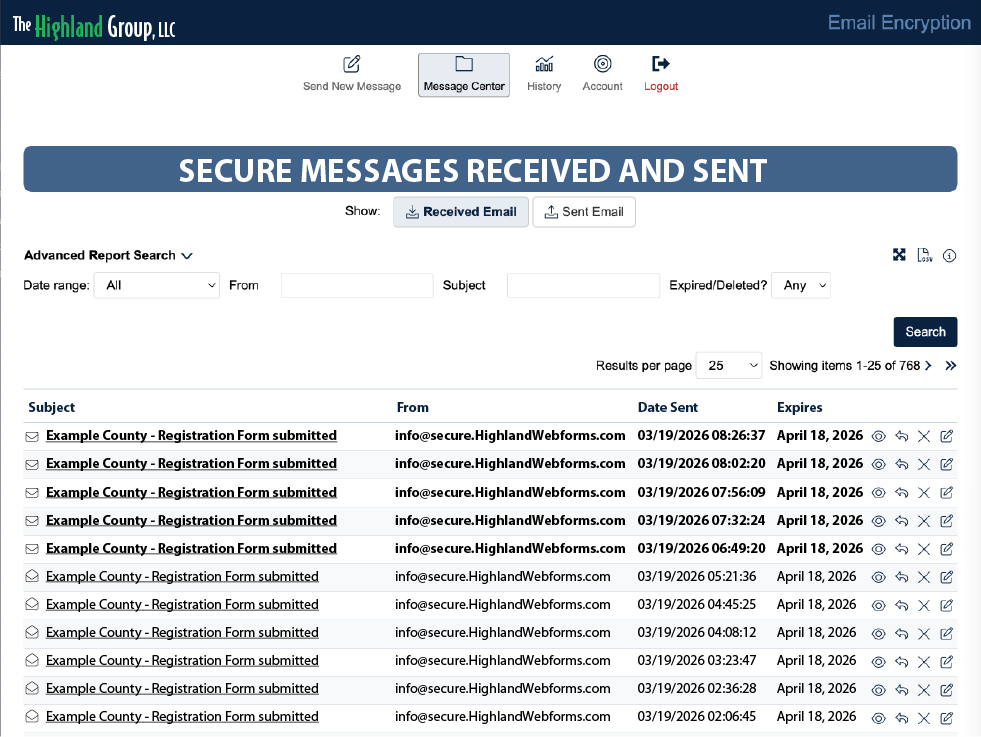
The Message Center is where a list of all the secure forms your account has received are displayed. Any line item shown in boldface is still unread; all others have been opened. To open and view any form in the list (whether read or unread) just click on the underlined form name.
By default, any forms submitted earlier than 30 days ago will be shown with a strike-thru in the name and be unavailable to view. This is a standard expiration period (mostly to comply with HIPAA rules) and may be adjusted at your request to any time period up to ten years.
You can delete any line item from the list by selecting the X at the end. Once deleted the submitted form will not be able to be retrieved.
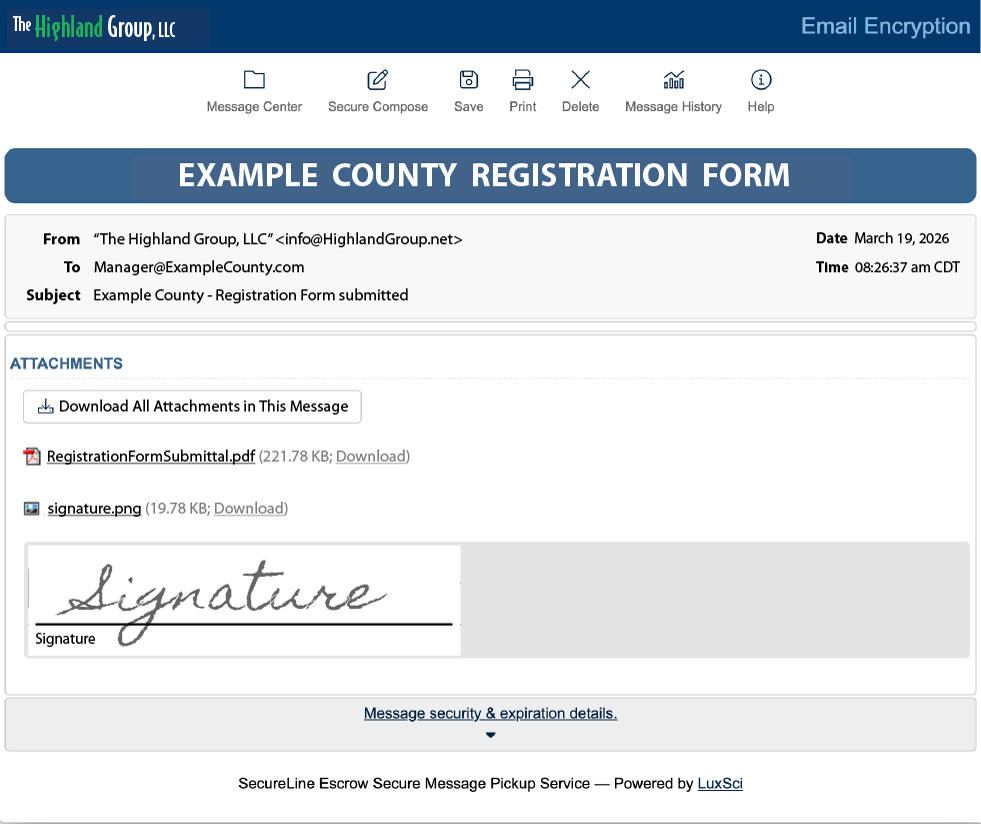
The SecureSend Message window will open - you’ll now see the elements of your user’s submitted form.
In the Attachments frame will appear a link to the submittal PDF file, as well as any attachments (like signatures or uploaded documents). Note that the PDF file will include any electronic signatures placed in position, but will not include uploaded documents.
A click on the submittal PDF link will open the document in your browser (may depend on your browser settings). You can just read it there and take whatever action comes next, or you may download it to the location of your choice right from your browser.
If you don’t need to read the PDF first you can just click the individual Download or the Download All Attachments in This Message button to send it to your desired destination.
If you’d like to see all the submitted documents you’ve received at any time, just click the Message Center icon  at the top of the window.

Message Center
As soon as the form user clicks the Submit button, a notification email is sent immediately to the person(s) of your choice in your organization.
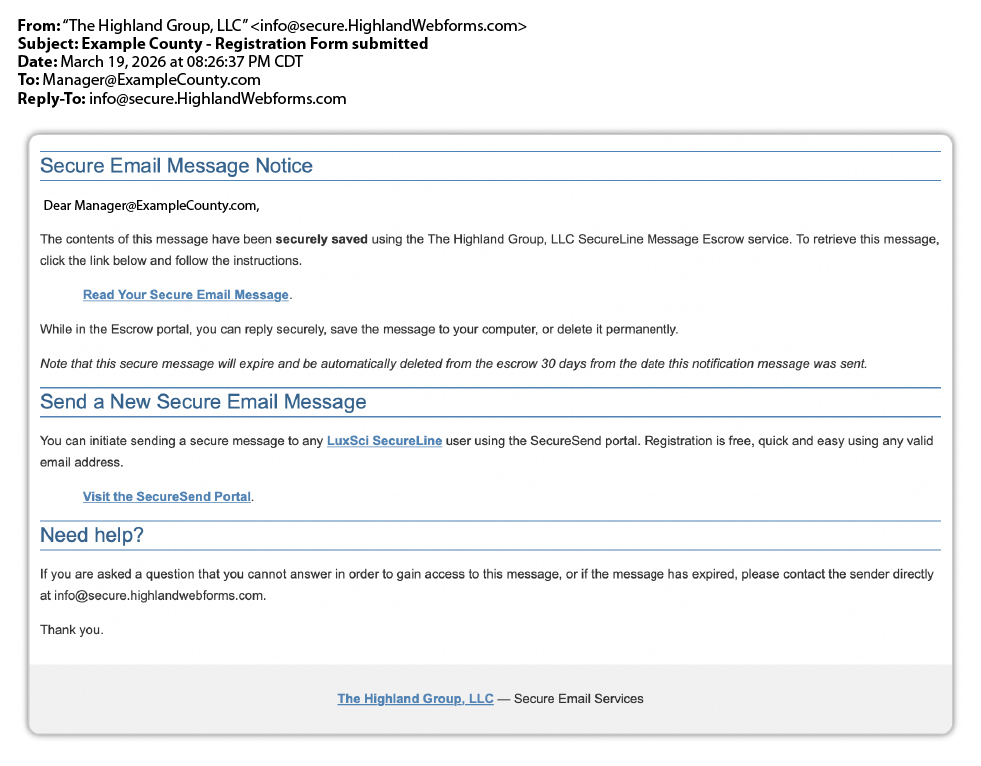
A click on the Read Your Secure Email Message link opens your SecureSend Message Center (next)
SecureSend Message
A PDF of the submitted form is then downloaded and displayed, with the signatures in place.
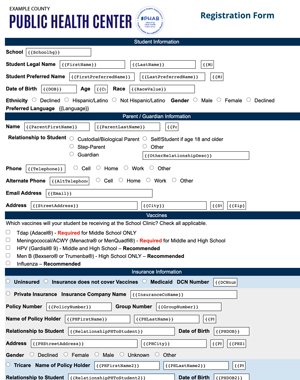 This is perhaps the most unique feature of the our program – the ability to receive a submission of a custom webform in the same layout and format as your original form, and in a PDF that you can file and/or distribute to other departments in your organization. You can see the full-sized submittal form here.
Note that all the content of the original is arranged exactly the same, but in a much cleaner style. You also no longer need to have areas labeled "For Office Use Only" on the form that the users see, but it will appear on the submitted form.
Another big benefit of our system is the end of having to try to read the entries on forms that have been filled out by hand – and the content of entries can be copied and pasted into other documents or messages.
In addition to PDF format, we can furnish form results in Plain Text, Tabular HTML, XML or CSV (suitable for importing into Excel®) formats.
The Notification Message
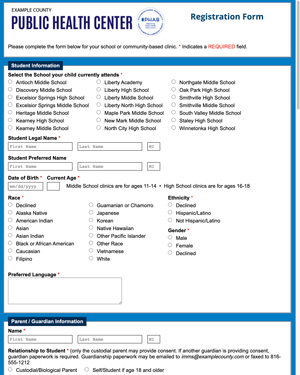 After receiving your current form, as well as any changes you’d like to make, we’ll begin building the online form. This is a completely new document, in a user-friendly structure and format. You can see a full-size image of Our Online Form here.
We’ll work to optimize the functionality of the form on a field-by-field basis, occasionally changing the type of field used for a particular area. We’ll also rearrange the structure of a form to improve the flow where necessary.
The driving concept in this redesign is to improve the user experience, because that’s what helps most to reduce the dreaded 'form abandonment' that occurs more than you’d expect. We’ll set up the form so that the same information is not requested more than once, and we can ensure that sections of your form that don’t apply to this user (based on answers to a previous question) won’t even show up.
We also endeavor to make sure that the form user understands what information is being requested, and what format it needs to be in. We’ll add 'placeholder text' that spells out the format of the desired answer (like MM/DD/YYYY) right in the field itself, and tool tips for more complex instructions.
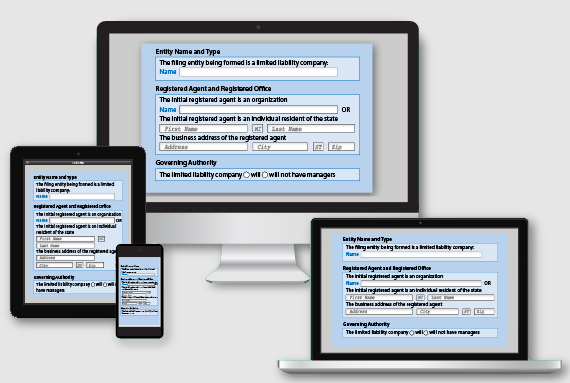 The new online form will also be responsive, which means that it will appear perfectly readable no matter which device it’s viewed on. Instead of showing up vastly reduced in size, requiring the user to zoom into each area of the image and scroll in all directions to complete the form, the new form will rearrange itself to fit the viewport without reducing text or field sizes.